Skip to content
KeyLoom floating virtual keyboard hanging from a rope on macOS

KeyLoom - Floating Virtual Keyboard for macOS

KeyLoom

A floating virtual keyboard for macOS. Type into any app with automatic Cmd+V paste.

Download KeyLoom
`
1
2
3
4
5
6
7
8
9
0
-
=
BK
TAB
q
w
e
r
t
y
u
i
o
p
[
]
\
CAP
a
s
d
f
g
h
j
k
l
;
'
RET
SHIFT
z
x
c
v
b
n
m
,
.
/
SHIFT
space

Features

Everything you need for quick and efficient text input, built into one lightweight tool that stays out of your way until you need it.

Floating Panel

Sits above all windows. Works in every space.

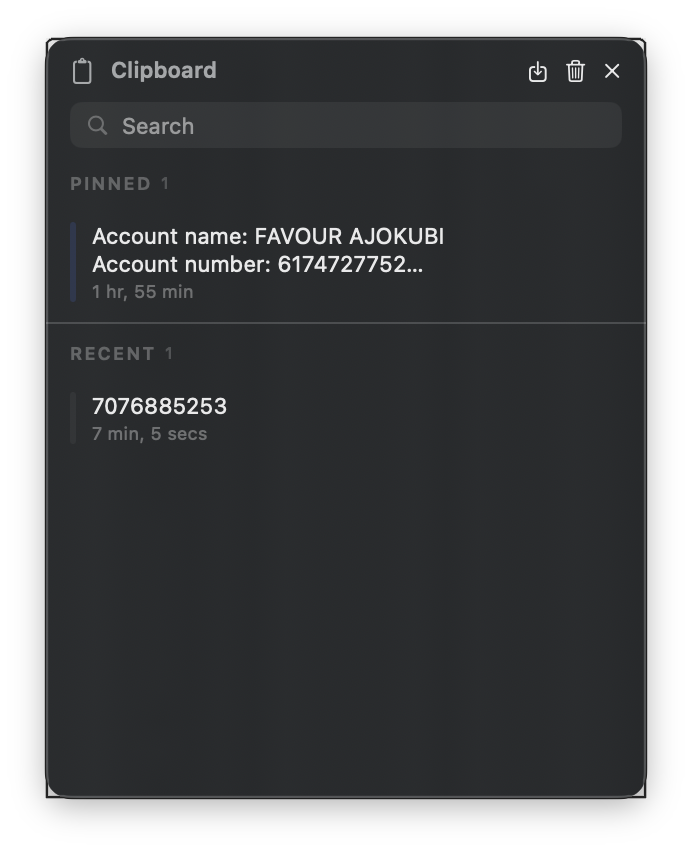
Clipboard History

Auto-monitors clipboard. Search, pin, export.

Quick Keys

Compact strip of your most-used keys.

Broken Keys

Highlight frequently used keys in color.

6 Sound Styles

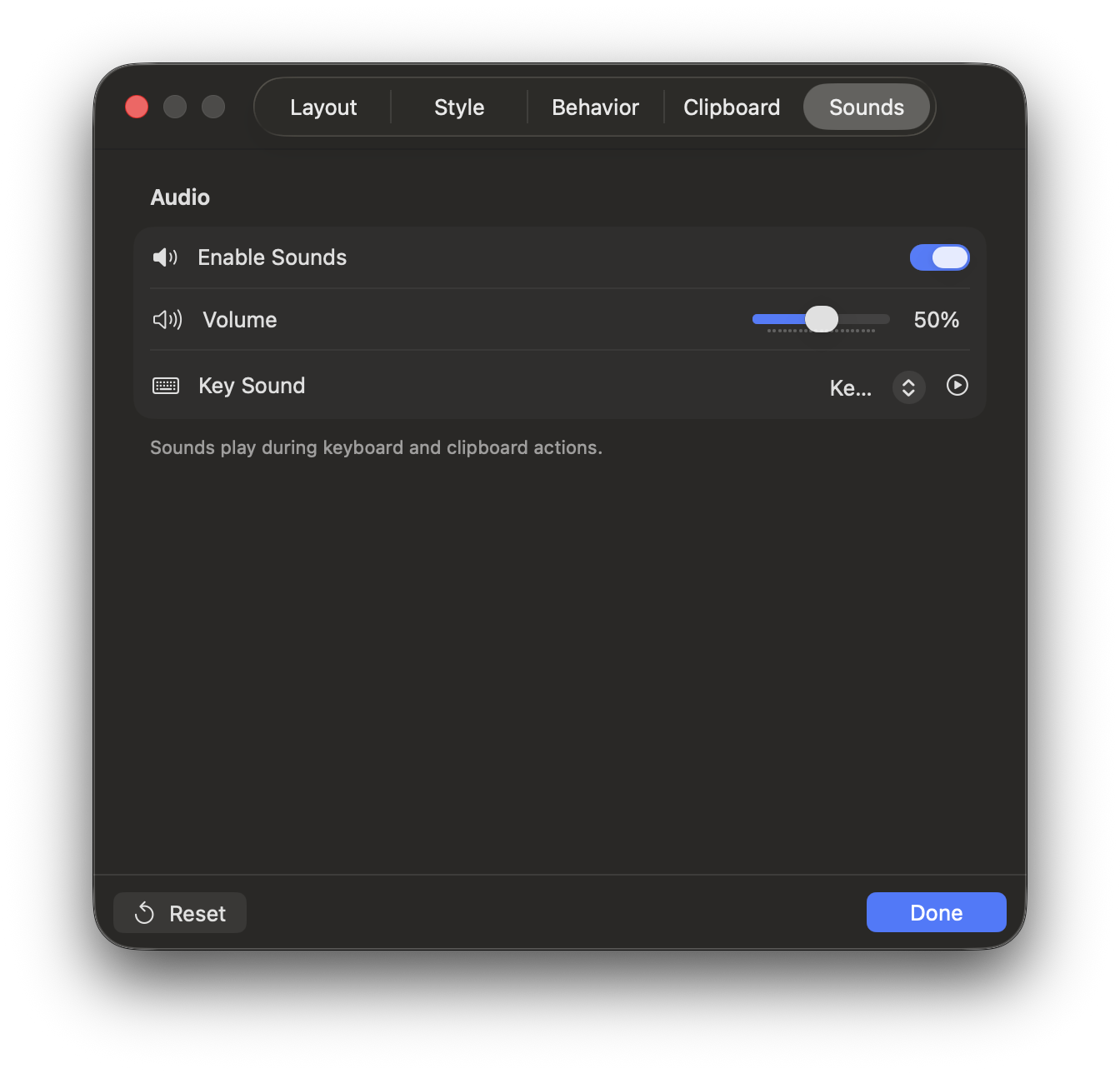
Key Click, Soft, Mechanical, Glass, Minimal, Bottle.

Physical Sync

Shift and Caps Lock follow your real keyboard.

How It Works

KeyLoom runs as a menu bar app. Click the icon to open the dropdown with quick actions.

Launching the App

  • Grant Accessibility and Input Monitoring permissions on first launch.
  • Keyboard appears at screen center. Drag it anywhere.
  • Stays on top of every window across all Spaces.

Typing with KeyLoom

  • Click any key. Character is pasted into your focused app via Cmd+V.
  • Works in any app: Notes, Safari, Terminal, Slack, VS Code.
  • Physical keyboard still works normally.

Keyboard

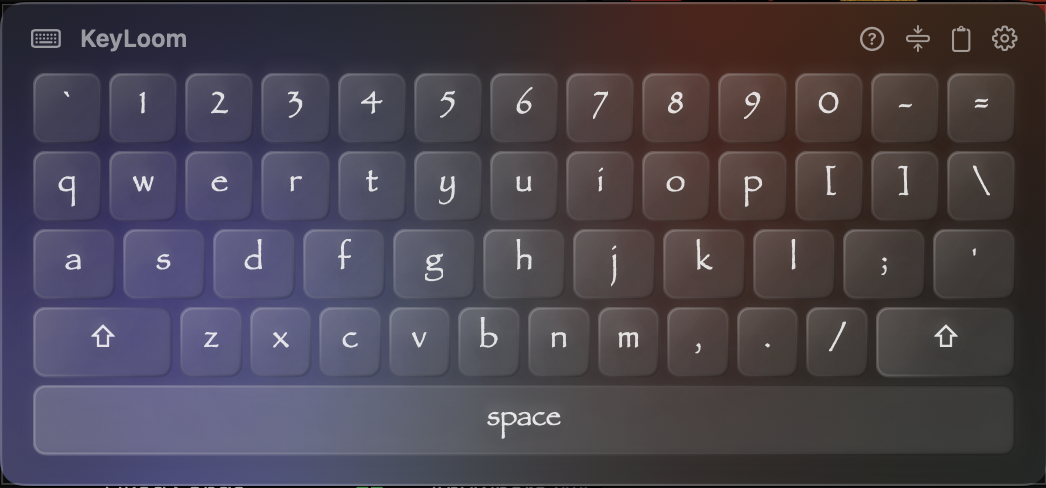
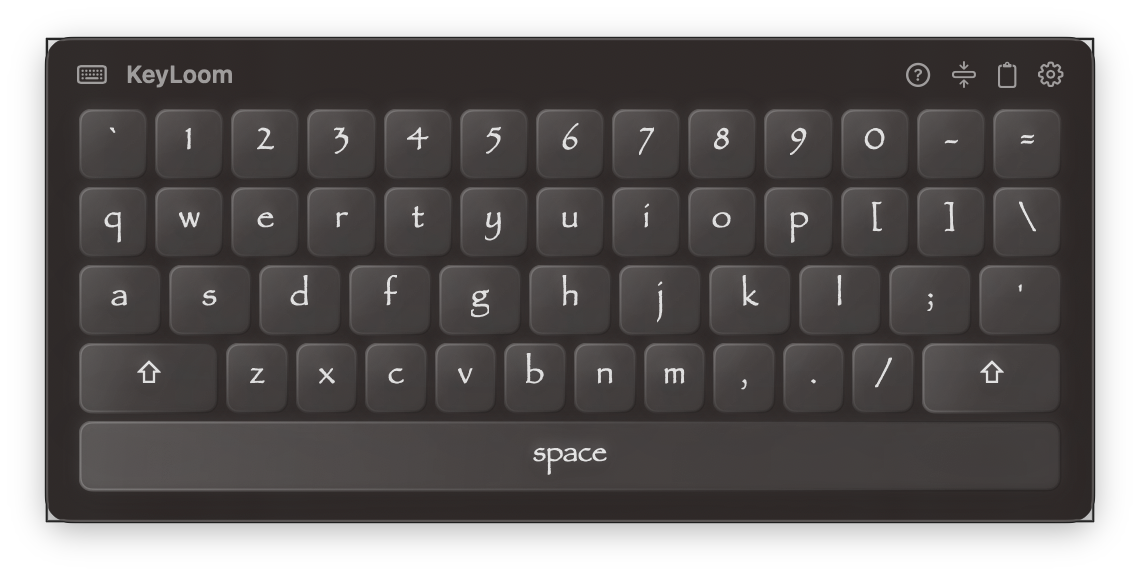
A full QWERTY layout rendered in 3D, right on your screen. Every key is clickable, and the keyboard responds to your physical key presses in real time. Rotate and explore it below.

`~
1!
2@
3#
4$
5%
6^
7&
8*
9(
0)
-_
=+
qQ
wW
eE
rR
tT
yY
uU
iI
oO
pP
[{
]}
\|
Caps
aA
sS
dD
fF
gG
hH
jJ
kK
lL
;:
'"
Enter
Shift
zZ
xX
cC
vV
bB
nN
mM
,<
.>
/?
Shift
Ctrl
Alt
Alt
Ctrl
Output

Settings Guide

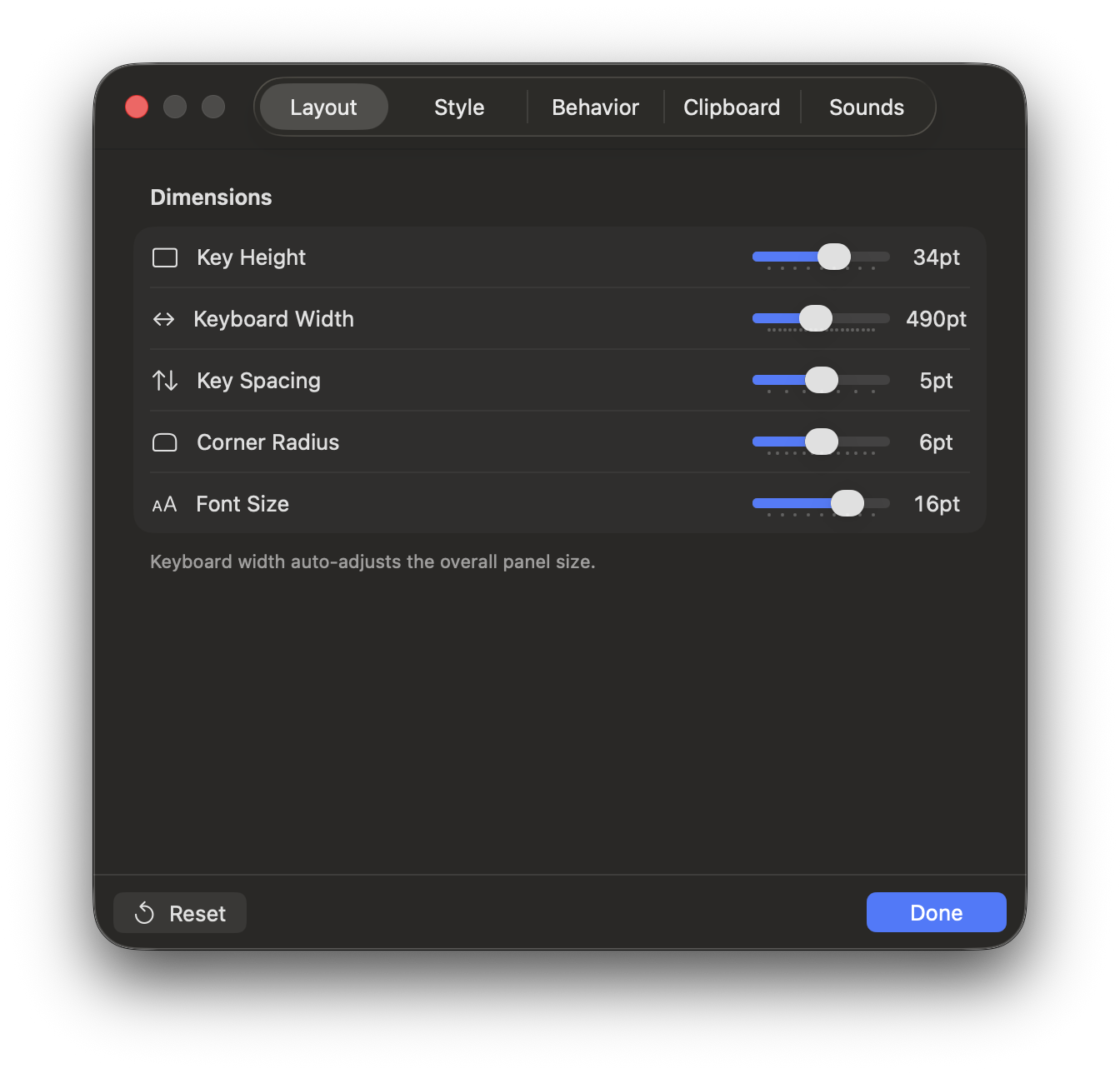
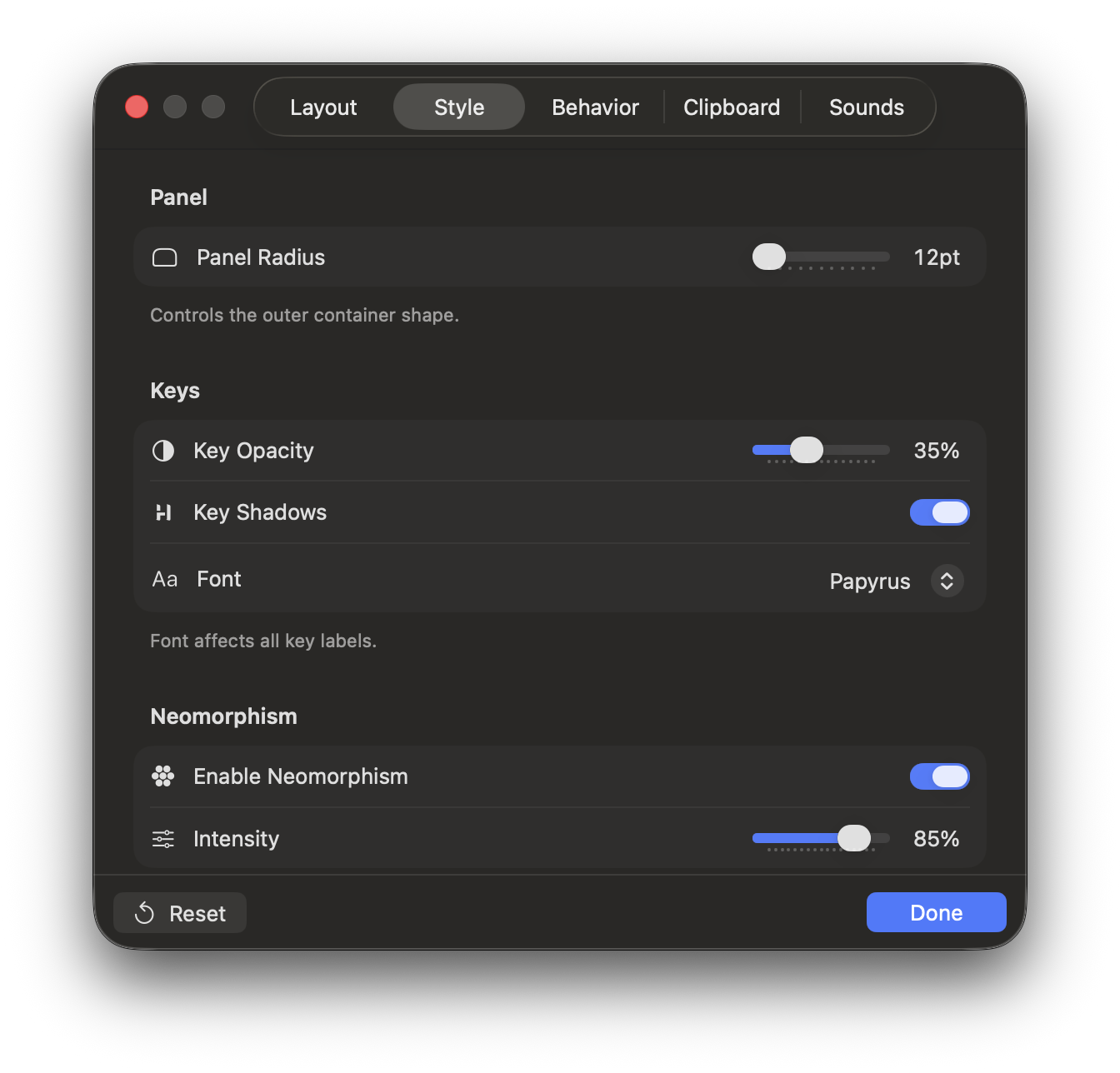
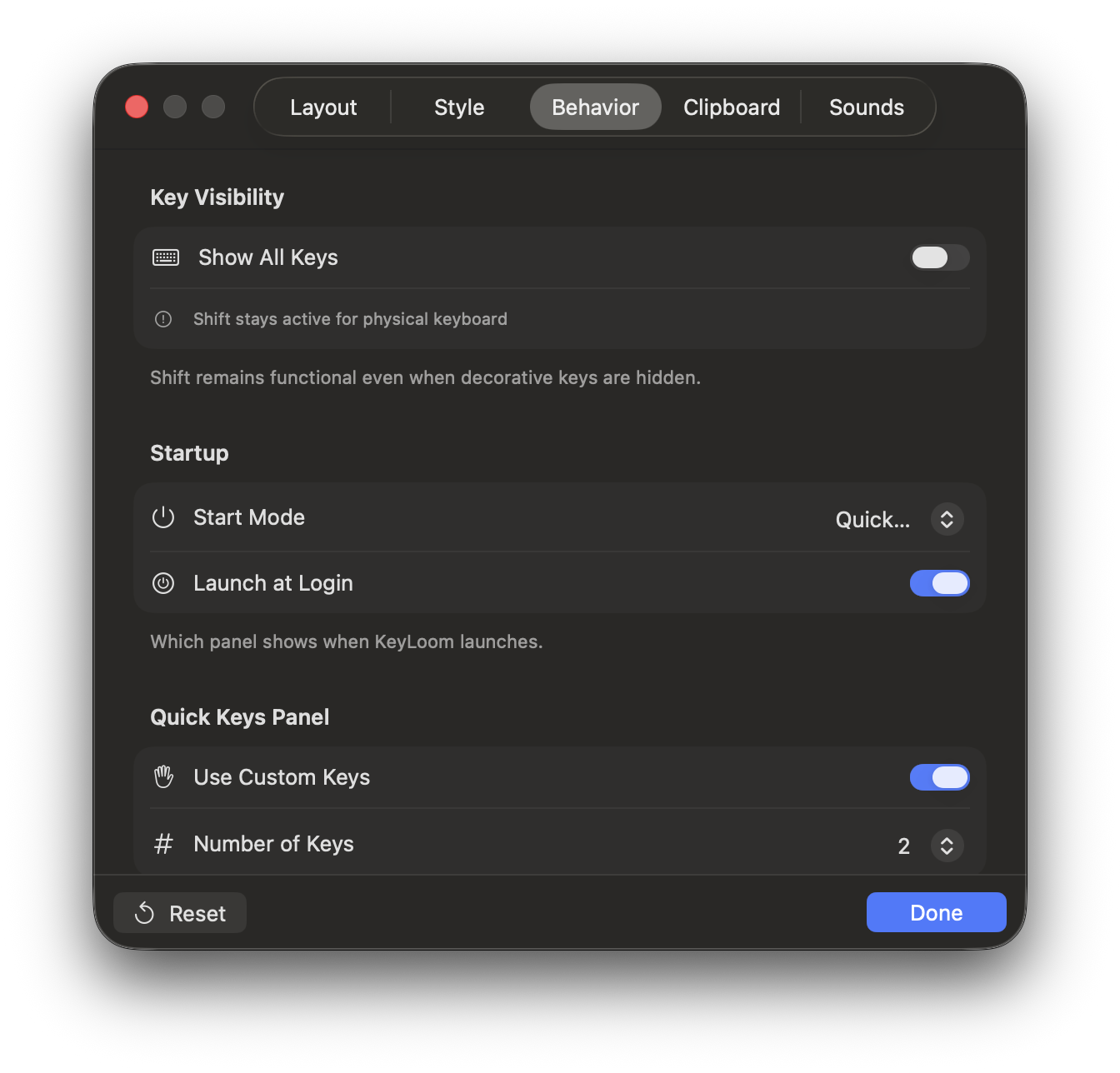
Click Settings in the menu bar dropdown. Everything is organized into five tabs.

Layout

  • Size — scale from compact to full.
  • Opacity — make it see-through.
  • Padding — horizontal and vertical inner spacing.
  • Position — snap to top, center, or bottom.
  • Always on top — float above other windows.

Style

  • Theme — Dark, Light, or System auto-switch.
  • Accent color — highlight for active keys.
  • Key shape — rounded, square, or pill.
  • Font weight — light, regular, or bold labels.

Behavior

  • Auto-hide — fade out after inactivity.
  • Key delay — adjust repeat speed.
  • Sound — toggle keypress audio.
  • Launch at login — auto-start on boot.

Sounds

  • Key Click — sharp snap.
  • Soft — gentle tap.
  • Mechanical — Cherry MX clack.
  • Glass / Minimal / Bottle — more options.

Clipboard

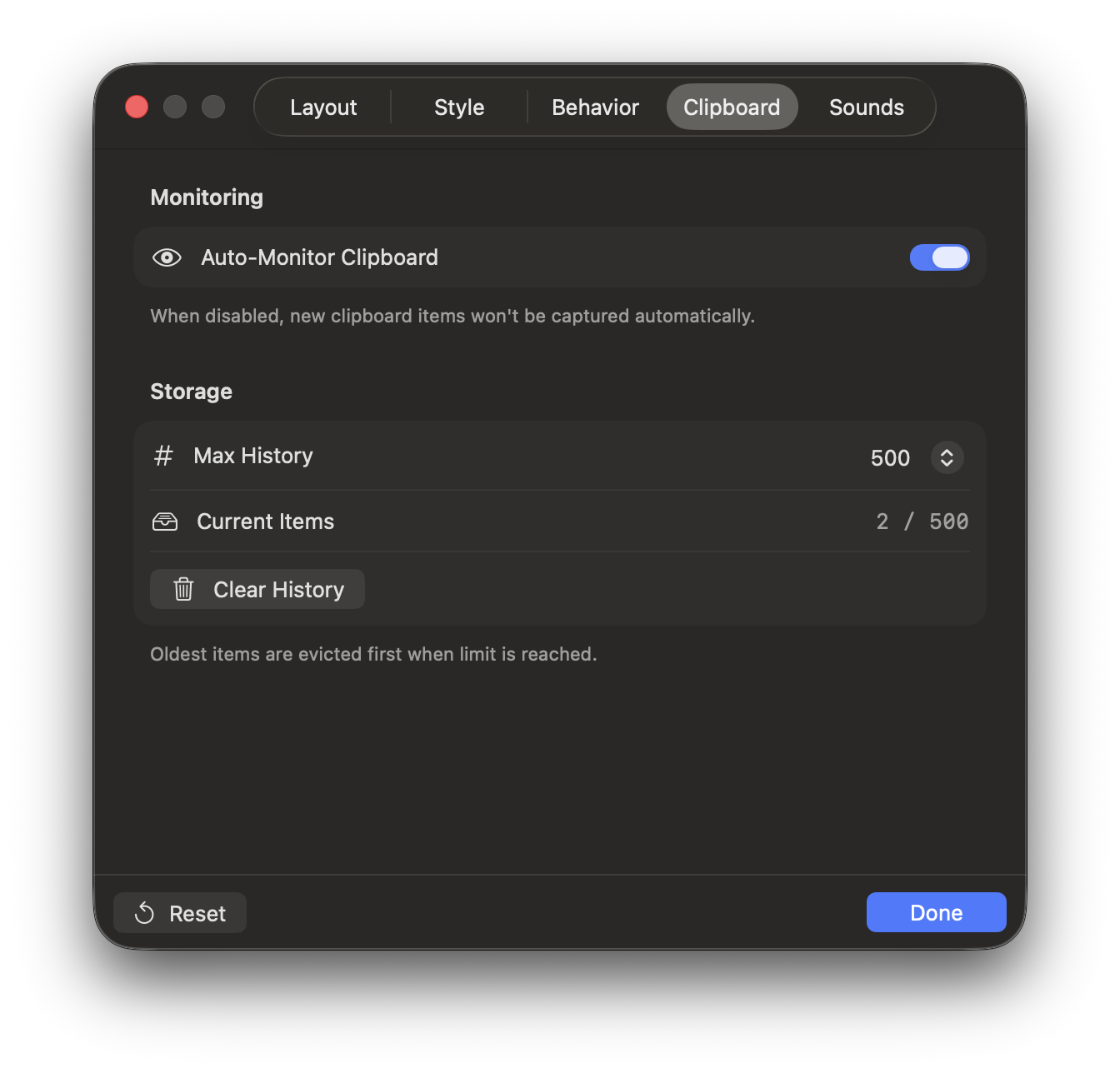
  • History — auto-copies typed text. Browse and reuse.
  • Pin items — keep important snippets. Max 5.
  • Export — save history as text file.
  • Quick keys — configure the shortcut strip.

Hidden Features

KeyLoom has a few tricks you might not discover on your own. These are power-user features built right in.

01 Physical Key Sync

When you press Shift or Caps Lock on your real keyboard, KeyLoom detects it instantly. The virtual keyboard updates to show uppercase letters and the correct symbols. No lag, no config needed.

02 Broken Keys

The T and B keys are highlighted in a different color. These are your most-used keys based on average typing frequency. The highlight helps you locate them faster during rapid input.

03 Quick Keys Strip

Switch to the collapsed mode to get a thin strip of your most-used keys instead of the full keyboard. Perfect for quick symbol entry without the full panel blocking your view. Toggle it from the menu bar icon.

04 Drag and Reorder

The keyboard is not fixed. Click and drag the panel to reposition it anywhere on screen. It remembers its last position between launches so you never have to move it again.

05 Menu Bar Shortcuts

Click the menu bar icon for a quick dropdown: open keyboard, access settings, view the guide, or quit. No need to open the full app for common tasks.

06 Clipboard Auto-Monitor

Every text you type through KeyLoom is automatically saved to clipboard history. You can search past entries, pin important ones, and export everything as a text file from the Settings panel.

Screenshots

A closer look at every corner of KeyLoom. From the keyboard layout to the settings panel, everything is designed to feel native to macOS.
See It in Action

Watch KeyLoom in real use. See how the floating keyboard integrates seamlessly into your macOS workflow without getting in the way.

SpacePlay
Seek
FFull
Q
W
E
R
T
Y
U
I
O
P
0:00 / 0:00
Speed
1 / 10